Running Google Ads without tracking your conversions is like spending money on a shop that you never visit. You have no idea what is working and what is wasting your budget. The google ads conversion tracking setup is the single most important step after launching any paid campaign. Yet most small business owners skip it, delay it, or assume they need a developer to get it done. You do not. This guide walks you through the exact process of setting up conversion tracking on your own, in plain language, with no technical background required.
What Is Google Ads Conversion Tracking and Why Does It Matter?
Google Ads conversion tracking is a free tool inside every Google Ads account. It records what happens after someone clicks your ad, whether that is a form submission, a phone call, a purchase, or a visit to a specific page.
Without it, Google’s algorithm has no idea which clicks are turning into real customers. It just spends your budget trying to get as many clicks as possible, which does not always mean leads or sales.
When the tracking is set up correctly, you can see exactly which campaigns, keywords, and ads are generating results. This makes it much easier to cut wasted spend and grow the activities that are actually working.
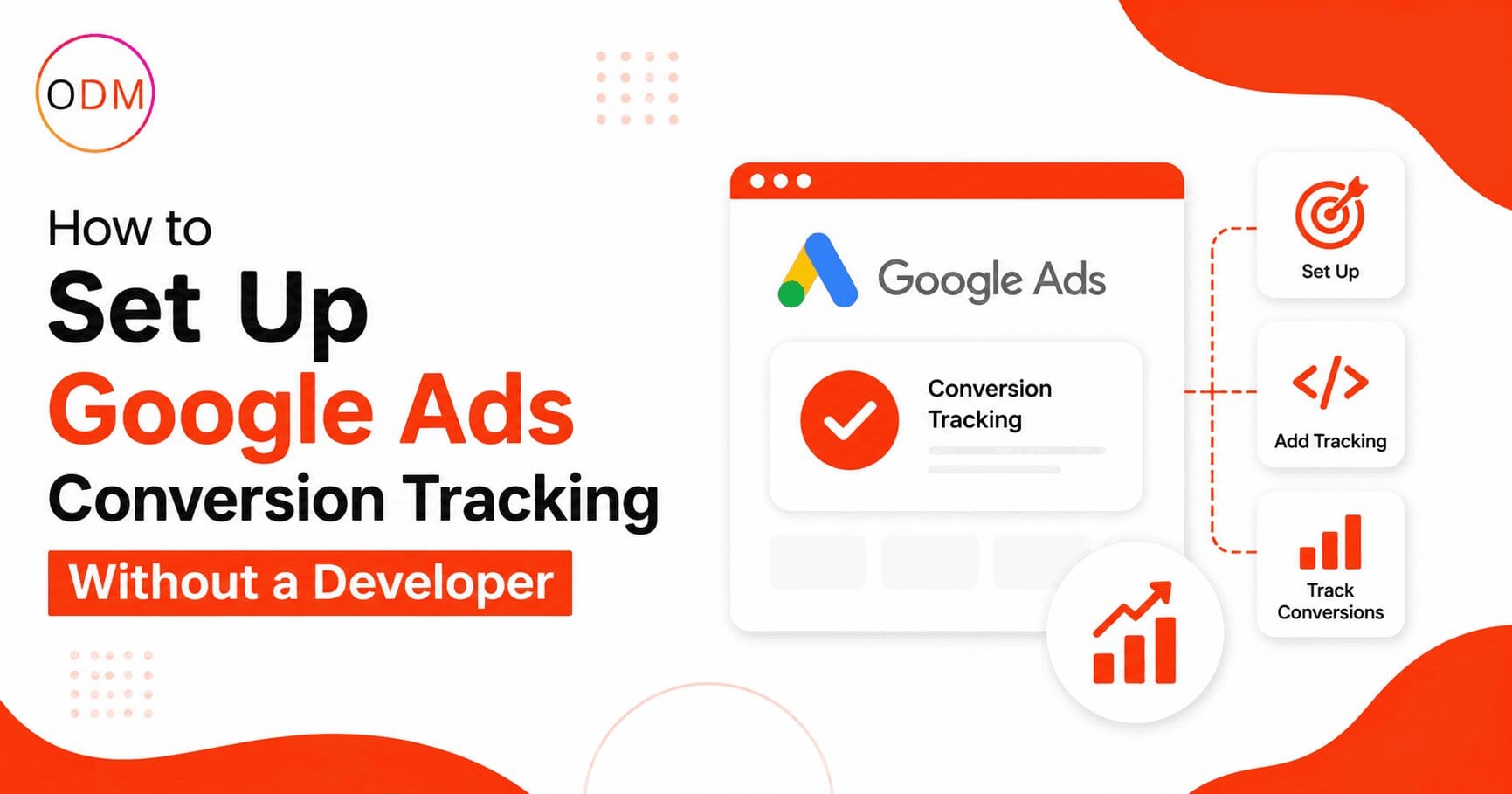
Direct answer: To set up google ads conversion tracking, you create a conversion action inside your Google Ads account, install the Google Tag on your website (via Google Tag Manager or a plugin), and verify it is firing correctly. The whole process takes under an hour.
What Actions Should You Track in Google Ads?
Before anything else, decide which actions represent real value for your business. A common mistake is tracking too many things at once, which gives Google’s algorithm confusing signals.
Focus on three to five conversion actions maximum. Every action you track should represent genuine business value, not just activity.
For most small businesses, the most important actions to track are:
- Form submissions — when someone fills out a contact or enquiry form
- Phone calls — calls made directly from your ad or from your website after clicking an ad
- Thank-you page visits — when a user lands on a confirmation page after completing an action
- Purchases — for e-commerce or service booking pages
- Button clicks — clicks on a “Get a Quote” or “Book Now” button
Avoid tracking page views or general site visits as conversions. Doing so teaches Google to optimise for traffic, not customers.
Step-by-Step: How to Do the Google Ads Conversion Tracking Setup Without a Developer
This is the section that answers the core question. Follow these steps in order and you will have working conversion tracking without touching a single line of code manually.
Step 1: Create a Conversion Action in Google Ads
Log in to your Google Ads account. In the left-hand menu, go to Goals, then click Conversions, then Summary. Click the blue plus button and select Website. Choose your conversion category (for example, “Submit lead form”), give it a clear name, and set a conversion value if applicable. For lead generation, you can assign an estimated value per lead.
Step 2: Choose Your Installation Method
Google will ask how you want to install the tag. You have three options:
- Install the tag yourself (direct code insertion)
- Use Google Tag Manager (recommended for non-developers)
- Use a website plugin
For most business owners, Google Tag Manager (GTM) is the best route. GTM is a free tool that acts as a container on your website. Once it is installed once, you can add, edit, or remove tracking tags without touching your website code again.
Step 3: Install Google Tag Manager on Your Website
If you use WordPress, install the “GTM4WP” plugin or the Google Site Kit plugin. Both let you add your GTM container ID without any coding. For Shopify, Wix, or Squarespace, each platform has a built-in field to paste your GTM code in the site settings.
Step 4: Set Up the Conversion Tag in GTM
Inside GTM, create a new tag. Select Google Ads Conversion Tracking as the tag type. Paste your Conversion ID and Conversion Label (both found inside your Google Ads conversion action setup). Set the trigger to fire on your thank-you or confirmation page URL.
Step 5: Publish the GTM Container
This step is often forgotten. After creating your tag, you must click Submit and then Publish inside GTM. If you skip this, the tag will never fire.
Step 6: Test and Verify
Use the Google Tag Assistant browser extension or GTM’s built-in preview mode to confirm your tag is firing on the correct page. In your Google Ads account, the conversion status will change from “Unverified” to “Recording” within 24 to 48 hours once a real conversion fires.
How to Track Conversions in Google Ads Using a Thank-You Page (The Simplest Method)
If you want to know how to track conversions in google ads using the most beginner-friendly method, the thank-you page approach is your answer.
When a visitor fills out a contact form and gets redirected to a page like yourwebsite.com/thank-you, that page visit confirms a completed conversion. You place the event snippet only on that URL. No complex triggers, no button-click tracking, just a simple page visit confirmation.
This method works well for:
- Contact form submissions
- Newsletter sign-up confirmations
- Quote request completions
- Free consultation bookings
The important thing is that your thank-you page should not be publicly accessible. It should only appear after a form is submitted. Otherwise, direct visits to that URL will count as false conversions and inflate your numbers.
How to Track Conversions in Google Ads for Phone Calls
Phone call tracking is one of the most underused features in Google Ads, especially for local businesses and service providers.
Google Ads offers two types of phone call tracking:
Calls from ads: Someone sees your ad and calls the number shown directly in it. This is tracked automatically once you add a call asset to your campaign.
Calls from your website: A user clicks your ad, lands on your site, and then calls the number on the page. For this, Google provides a forwarding number that temporarily replaces your real number to track the call.
For learning how to track conversions in google ads with phone calls, go to your Goals section, click Conversions, add a new conversion, and select Phone Calls. Follow the setup prompts for the call type you want to track.
Set the minimum call duration to at least 60 seconds so you are only counting genuine enquiries, not wrong numbers.
A Real-World Scenario: What Happens Without Proper Tracking
Imagine a plumbing company in Delhi running Google Ads spending ₹40,000 per month. The campaign manager reports 200 clicks per month and a low cost per click. The business owner assumes the ads are working.
But when asked how many leads actually came in, no one knows. There is no conversion tracking. Google is optimising for clicks, not calls or form submissions.
After setting up proper google ads conversion tracking through GTM, with phone call tracking and a thank-you page event, the data reveals something different. Of those 200 clicks, only 14 resulted in actual enquiries. The cost per lead is now visible as nearly ₹2,800.
With this data, the campaigns are restructured. Underperforming keywords are paused. The budget shifts to the two ad groups that are generating the most calls. Within 60 days, the same spend produces 31 leads instead of 14.
This is exactly what accurate tracking makes possible. It changes the conversation from “how many clicks did we get” to “how many customers did we acquire.”
Do You Need to Know How to Track Conversions in Google Ads Differently for Each Business Type?
Yes, and this is where many business owners run into trouble. The setup process for how to track conversions in google ads varies slightly depending on your business model.
For service businesses: Focus on form submissions and phone calls. These are your primary lead signals.
For e-commerce: Track purchases, add-to-cart events, and checkout initiations. Pass dynamic order values so you can calculate real return on ad spend.
For local businesses: Prioritise call tracking and direction requests if you run local campaigns.
For SaaS or subscription products: Track free trial sign-ups, demo requests, and account creations.
Getting this right is also a reason why many growing businesses choose to work with a google ads management service rather than figure it out alone. A professional team maps the right conversion actions to your actual business goals before a single rupee of ad spend begins.
If you are unsure whether your current setup is tracking the right actions, speak with the team at Online Dot Marketing. A quick audit can reveal whether your data is accurate or misleading.
Common Mistakes That Break Your Google Ads Conversion Tracking Setup
Even after following all the steps, small errors cause big problems. Here are the most common ones to avoid:
1. Installing the event snippet on the wrong page The event snippet goes on the confirmation page, not the form page. Many businesses make this mistake and never track a single real conversion.
2. Forgetting to publish the GTM container Creating a tag in GTM is not enough. You must submit and publish the container for it to go live. This is the most frequently missed step.
3. Counting every page load as a conversion If your thank-you page is accessible by direct URL, every visit counts as a conversion, including your own. Prevent this by adding session-based logic or unique URL parameters.
4. Duplicate tags firing at the same time If you have both a hardcoded Google Tag on your website and a GTM tag for the same conversion, it fires twice. This doubles your reported conversions and misleads smart bidding.
5. Not assigning conversion values Without values, you cannot use value-based bidding strategies or calculate your true return on ad spend. Even an estimated value is better than none.
Ask Yourself: Is Your Current Tracking Actually Working?
Before reading further, take a moment to evaluate your own setup.
Log in to your Google Ads account. Go to Goals and then Conversions. Do you have any conversion actions listed? If yes, do they show a status of “Recording”? When was the last confirmed conversion recorded?
If you cannot answer these questions confidently, your tracking may be broken, misconfigured, or simply not set up at all.
Many businesses running Google Ads today are doing so with zero reliable data. They are making budget decisions based on clicks and impressions, not real leads or sales. A google ads agency for small business would catch these issues in the first review and fix them before more budget is wasted.
Are You Spending on Ads Without Knowing What Is Actually Working?
If you have read through this guide and realised your tracking is incomplete, misconfigured, or simply never set up, you are not alone. Most small businesses running Google Ads are in the same position.
The good news is that fixing it is not complicated when you have the right support.
Online Dot Marketing is a dedicated google ads management service helping small and medium businesses across India get more from their advertising budgets. Whether you need a full google ads conversion tracking setup from scratch, a tracking audit to find where data is being lost, or ongoing management to turn your ad spend into predictable leads, the team is ready to help.
As a trusted google ads agency for small business, Online Dot Marketing does not just set up tags and walk away. Every campaign is managed with accurate data, clear reporting, and a focus on the conversions that actually matter to your business growth.
Contact Online Dot Marketing today and find out exactly what your Google Ads campaigns are (or are not) delivering.
FAQ: Google Ads Conversion Tracking Setup
Q1: Can I set up Google Ads conversion tracking without any coding knowledge?
Yes, you can. Using Google Tag Manager and a plugin like GTM4WP for WordPress, the entire google ads conversion tracking setup can be completed without writing a single line of code. GTM handles all tag deployment through a visual interface.
Q2: How long does it take for conversions to show up in Google Ads after setup?
After completing the setup, it typically takes 24 to 48 hours for conversions to appear in your Google Ads reports. The status in your conversion actions panel will change from Unverified to Recording once a real conversion fires successfully.
Q3: What is the difference between Google Tag Manager and a Google Tag?
Google Tag Manager is a container tool that manages multiple tags from one dashboard. The Google Tag (also called the Global Site Tag) is the actual tracking code for Google Ads. GTM is the recommended way to deploy the Google Tag without direct code access on your site.
Q4: Why am I seeing conversions in Google Ads but no leads in my inbox?
This often means your event snippet is firing on the wrong page or the thank-you page is accessible by direct URL. Both cause false conversion counts. Review your GTM trigger settings and ensure the confirmation page only loads after a genuine form submission completes.
Q5: Should I hire a google ads agency for small business to set up my tracking?
For straightforward setups, you can do it yourself. But for e-commerce, call tracking, enhanced conversions, or GA4 integration, working with a google ads agency for small business ensures your data is clean, accurate, and aligned with your actual business goals from the start.
Q6: What happens to my Google Ads campaigns if I have no conversion tracking?
Without conversion tracking, Google’s algorithm cannot optimise for real results. It will spend your budget on clicks without knowing which ones lead to customers. Smart bidding strategies will not function correctly, and you will have no data to guide decisions on budget allocation.